
Choose your route before making a clip
“Live wallpaper” describes an experience, not a universally interchangeable file. Use this table to decide which route to investigate before you edit the picture.
| Your destination | Start by checking | Do not assume |
|---|---|---|
| iPhone Lock Screen | Whether a compatible Live Photo works in the wallpaper picker | An MP4 download is a native Live Photo |
| Galaxy Home or Lock Screen | The video-wallpaper options on your model and software | Every Galaxy, or every Android phone, offers identical options |
| Pixel photo effect | Which native Live effects your phone supports | A photo effect accepts arbitrary video files |
| Another device or unsupported route | Its official guidance, then any separate application's requirements | A playable preview proves wallpaper compatibility |
If you cannot confirm the destination, keep the original still and pause the animation step. There is no need to regenerate a picture to investigate a settings problem.
Source photograph
Check the resting frame
Leave room for the clockFollow the route your device supports
iPhone: confirm a compatible Live Photo
Apple's instructions describe Live Photo Lock Screen animation when the device wakes in iOS 17 or later. This is a particular playback behavior, not a promise of an always-moving Home Screen.
If the picture already exists as a Live Photo, try that asset first. Open the phone's Wallpaper settings, use the Live Photo selection described in Apple's guide, and inspect the preview and playback control before saving.
Starting from an ordinary JPG is different. AnimateImage's motion-video output is not a native Apple Live Photo. A separate, compatible conversion and import route would still be needed. Confirm that Photos recognizes the imported result appropriately and that the wallpaper picker accepts it; merely playing the video in Photos is not enough.
Renaming a video does not perform that conversion. Neither does receiving a JPG and MOV together in a ZIP establish an import-ready Live Photo. A wallpaper-pair option also does not establish continuous Home Screen animation. Verify the specific screen you intend to use.
Galaxy: check the available video route
Samsung's wallpaper guidance covers video options for supported Galaxy Home and Lock Screen workflows. Availability and controls depend on the device and software.
Use the Gallery or wallpaper route described for your device, select the intended screen, and inspect its preview. If a trim control appears, select the useful portion there. Follow the limits the actual picker presents instead of assuming a duration or file restriction from another model.
After saving, visit the selected screen and check the result. A video that fits in Gallery may be enlarged or cropped differently as wallpaper. Its successful import on one Galaxy is not a compatibility test for another phone.
Pixel: try the native photo effect first
Google's Pixel Live effects guide describes effects applied to photos, with eligibility varying by device and effect. On a compatible phone, inspect the available options in Wallpaper & style and preview an effect using your original picture.
This may give you the depth or movement you wanted without generating a video. It is not the same as importing any MP4 downloaded from a browser. If you specifically want a generated clip, you still need to establish a supported installation route. Otherwise, choose a native effect or keep the still image.
Compose the picture that stays still
Design a useful resting frame before adding motion. Imagine a bicycle photographed side-on against a wall: filling a tall screen might remove both wheels. A more elaborate animation will not recover that composition. Choose another crop or a source with more surrounding space.
Leave a quiet area for the clock and avoid putting essential details near the edges. Check the picture with the widgets and notifications you normally see. A portrait working canvas can help, but the phone's final preview decides what survives the crop; there is no single canvas that guarantees the same fit everywhere.
The subject should still make sense when playback ends. Keep an untouched original so you can return to a static wallpaper without extracting a potentially distorted frame from the animation.
Make only the motion the route needs
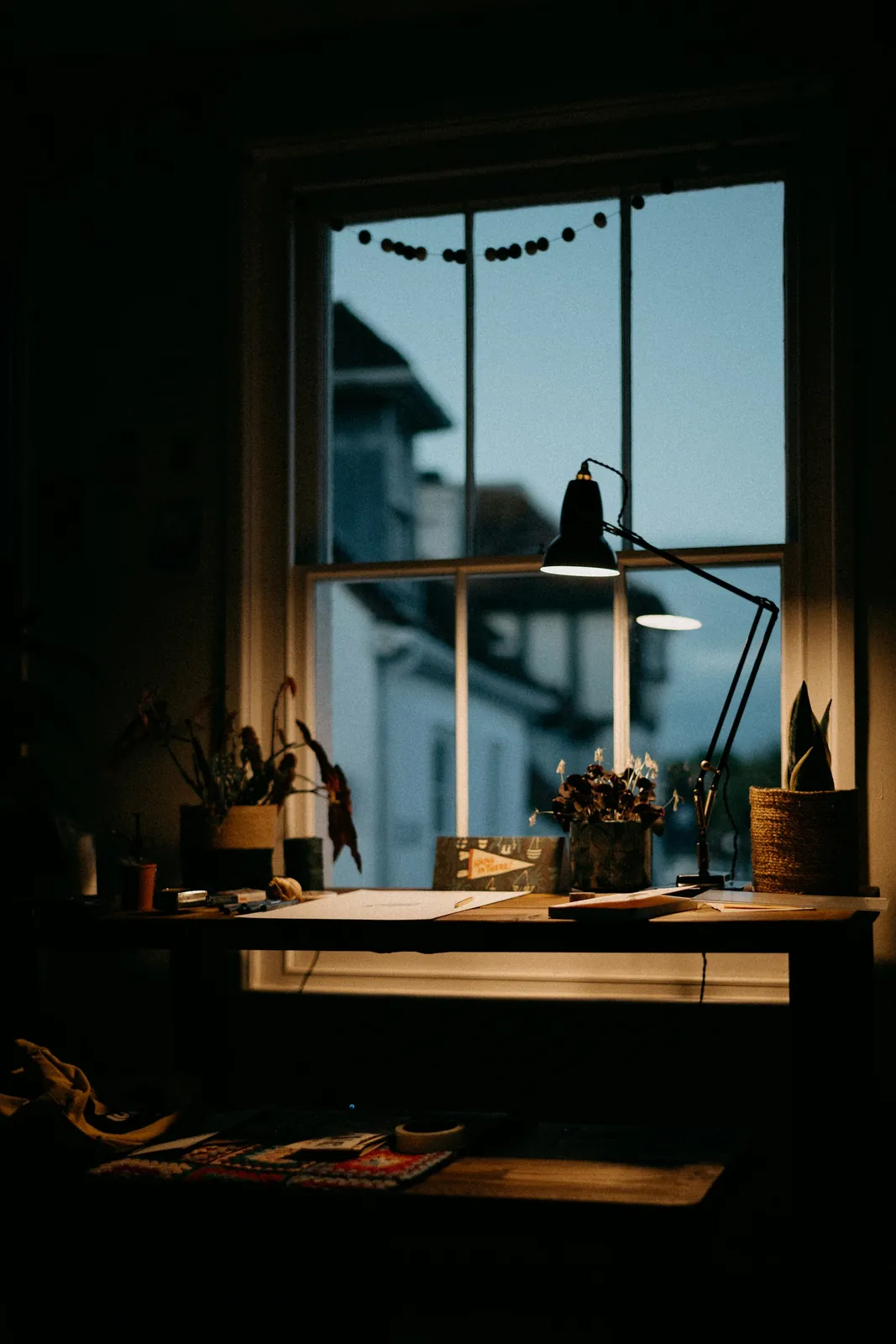
For a rain-window photograph with a desk lamp in the foreground, try a narrow request:
“Keep the camera fixed. Let a few small droplets move slowly down the right-hand windowpane. Keep the lamp and window frame steady, without changing the brightness.”
That is a creative instruction, not a guarantee of isolated movement. Inspect the lamp's outline, straight window edges, and overall exposure. A flickering light or bending frame can become more noticeable when you see the wallpaper repeatedly.
For a gentle pan across an existing photograph, apply a pan effect in a photo or video editor. Check the available download format against your import route; choosing a motion style does not settle the format question.
When the scene needs newly generated movement, create motion from your photo and inspect the result before carrying it to the phone. Review the job quote before confirming generation. Another render cannot repair an unsupported wallpaper destination.
Check an extra importer before relying on it
Some workflows require a separate application between the downloaded clip and the wallpaper picker. Before installing one, check its current device support, operating-system requirements, accepted inputs, and actual exported result. Does it produce something your wallpaper picker accepts, or only another playable video?
Also check permissions, whether your media is uploaded, and any purchase or subscription terms. No application is necessary simply because a search result uses “live wallpaper” in its name. If you can test the route with an existing clip you own, do that before spending time generating several alternatives.
Test with the screen off, then on
Once the wallpaper is saved, lock the phone, wake it normally, and observe the selected screen. Check the beginning of the motion, the resting picture, the clock, and notifications. Repeat under your usual display and accessibility settings; do not change a comfort preference just to force movement.
Watch for a sudden framing jump or a bright flash. If the route repeats the clip, inspect the restart too, but do not expect every wallpaper system to loop. Sound should not be needed to understand the scene.
Try ordinary use before replacing your original. A wallpaper is finished when its behavior suits the phone and remains readable, not merely when its download opens successfully.
Fix the stage that failed
| What happened | What to do next |
|---|---|
| Video plays, but the wallpaper picker cannot select it | Recheck the required media type and supported import route |
| A picture imports, but the expected motion control is absent | Check asset recognition and device eligibility against official guidance |
| The subject disappears behind the clock or screen edge | Reposition the preview or return to a wider source crop |
| The image bends, flickers, or changes identity | Revise the motion source; changing phone settings will not repair those frames |
| Playback differs from what you expected | Confirm the chosen screen and documented trigger before making another clip |
Keep a reversible finish
Save the original photo, your chosen motion source, and a brief note of the phone model, software version, import method, and destination screen. That makes later changes easier to diagnose. Your photo to live wallpaper project can end with a native photo effect, an accepted motion asset, or a well-composed still. The useful outcome is the one your device actually supports.
Sources checked: October 31, 2026.